EditBuddy adds automatic zoom keyframes to talking-head videos in Adobe Premiere Pro. It detects natural emphasis points in your speech and places smooth Transform keyframes on V2, giving your video the punchy, dynamic feel of professionally edited content without manual keyframing.
Automatic zoom effects in Adobe Premiere Pro — AI-placed punch-in keyframes
EditBuddy detects high-energy moments in your speech and places punched-in zoom keyframes directly on your Premiere Pro timeline. No manual keyframing, no scrubbing for emphasis moments, no Transform panel gymnastics.
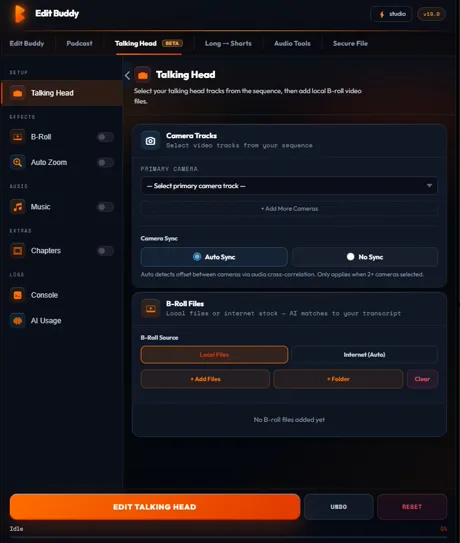
Key features of EditBuddy's auto zoom for Premiere Pro
The punch-in zoom is one of the most effective retention techniques in YouTube and social video — but placing keyframes manually for a 15-minute video takes 30–60 minutes. EditBuddy does it in under a minute.
AI-detected high-energy moments
EditBuddy doesn't zoom randomly. It analyses the speech transcript for energy signals: declarative statements that land with emphasis, rhetorical questions, emotional peaks, key statistics, and moments where the speaker's phrasing indicates a point of emphasis. Zoom events land where they feel intentional.
Transform keyframes on V2 — non-destructive
Zoom keyframes are placed on an AutoZoom layer on V2 using Premiere Pro's Transform effect. The main footage on V1 is untouched. Keyframes are fully editable in the Effect Controls panel — adjust scale, timing, or easing without re-running the pipeline.
Configurable zoom scale and frequency
Set the zoom scale percentage (default: 120% for a 20% punch-in), the maximum zoom events per minute, and the easing style (smooth Bezier or linear). Defaults are tuned for YouTube talking-head content and podcast-style video.
Aligned to the edited timeline, not raw footage
Zoom keyframes are placed after silence removal and retake detection. All positions are calculated using the time-remap table so keyframes land on the correct moments in the trimmed sequence — not at the wrong positions in the original raw footage timeline.
Smooth in and out ramps
Each zoom event has a ramp-in (scale increases smoothly to zoom percentage) and ramp-out (scale returns to 100%). Ramp duration is configurable. The default 8-frame ramp produces a natural, non-jarring punch-in that increases perceived energy without feeling like a mistake.
Works with B-roll and captions on other tracks
Auto zoom is track-isolated to V2. B-roll on V3 and captions on V4 are completely unaffected. You can run auto zoom before or after B-roll placement and captions — the pipeline order doesn't matter because each feature owns its own track.
Supports vertical (9:16) and square sequences
For Shorts and Reels, EditBuddy adjusts the zoom centre point to keep the subject centred in the frame for vertical aspect ratios. Zoom frequency is also increased for vertical content to match the shorter attention window of mobile-first viewers.
Individual keyframes deletable without affecting others
Unlike effects-layer approaches that apply to the whole clip, each zoom event is an independent set of keyframes. Delete any individual zoom that feels wrong. Add manual zoom events in the same layer. The auto-placed and manually-placed keyframes coexist naturally.
How automatic zoom works in Premiere Pro
Four steps from cleaned timeline to a dynamically zoomed, engagement-optimised Premiere Pro sequence. Zoom placement for a 15-minute video typically takes under 60 seconds.
Run silence and retake removal first
EditBuddy's pipeline cleans the timeline before placing zoom keyframes. This ensures zoom events land on the correct speech moments in the trimmed sequence — not on silence or false starts from the raw recording.
Configure zoom intensity and frequency
Open the Zoom tab in the EditBuddy panel. Set zoom scale (default 120%), ramp duration (default 8 frames), maximum events per minute (default 3), and easing style. Or leave defaults for YouTube talking-head content.
AI identifies emphasis moments from the transcript
EditBuddy analyses the Whisper speech transcript for energy signals — declarative emphasis, rhetorical questions, emotional peaks. At each signal, it calculates the precise timeline position using the time-remap table and queues a zoom event.
Keyframes placed on V2 — review in Effect Controls
Transform keyframes are placed on the AutoZoom layer on V2. Open Effect Controls to review any zoom event, adjust scale or timing to taste, delete any zoom you don't like, then export your video or continue to captions and B-roll.
Add auto zoom inside Premiere Pro — free trial
EditBuddy places smooth push-in zoom keyframes on your talking head videos automatically — keeps viewers engaged without touching Transform manually.
View Plans & Start Free →Who uses EditBuddy's auto zoom in Premiere Pro?
Any editor who produces talking-head, tutorial, or commentary video and wants the punched-in zoom aesthetic without spending 30–60 minutes placing keyframes by hand.
YouTube creators and vloggers
The punch-in zoom is a defining characteristic of high-retention YouTube content. Viewers associate it with energy, emphasis, and confidence — and A/B tests consistently show it increases average view duration. EditBuddy adds this aesthetic to your videos automatically, every upload, without adding any time to your edit.
Short-form video creators (TikTok, Reels, Shorts)
Vertical content has a shorter attention window — viewers scroll away faster if the visual isn't changing. Zoom effects on emphasis moments give short-form talking-head content the dynamic feel that retains viewers past the first 3 seconds. EditBuddy's vertical mode is tuned specifically for 9:16 sequences.
Online course and tutorial creators
Tutorial content benefits from zoom-in emphasis at the moment a key concept is stated — it signals to the viewer that this is the important part. EditBuddy identifies these moments from the speech transcript automatically, placing zoom events that function as visual emphasis markers rather than decoration.
Why EditBuddy vs. manual zoom keyframing in Premiere Pro
Manual zoom keyframing in Premiere Pro is not difficult — but it is time-consuming and requires watching your footage multiple times to find the right moments.
Manual zoom keyframing in Premiere Pro
Play through the video, pause at emphasis moments, open Effect Controls, set a keyframe at the current position for Scale, scrub forward 8 frames, set another keyframe at 120%, scrub forward for the hold, set another keyframe, scrub forward for the ramp-out, set the final keyframe. Repeat 20–40 times for a 15-minute video.
Estimated time for a 15-minute video: 30–60 minutes of active keyframing. Total energy cost: significant. Opportunity for timeline drift: every time you scrub to the wrong frame.
EditBuddy auto zoom
AI detects emphasis moments from the transcript. Keyframes are calculated from the time-remap table. All events placed in under 60 seconds. Review in Effect Controls, delete any you dislike, continue to export.
Estimated time for a 15-minute video: under 2 minutes total including review. Zero risk of mis-placed keyframes from scrubbing to the wrong frame — positions are derived from transcript timestamps, not manual scrubbing.
Add zoom effects to your Premiere Pro video in under a minute
EditBuddy's AI places punch-in zoom keyframes at the right moments automatically. No scrubbing, no keyframe gymnastics. Start free — no credit card required.
Start Free Trial — No Credit CardFrequently asked questions about auto zoom in Premiere Pro
How does EditBuddy place automatic zoom keyframes in Premiere Pro?
EditBuddy analyses the Whisper speech transcript for energy signals — declarative emphasis, rhetorical questions, emotional peaks, and key statistics. At each identified moment, it calculates the precise timeline position using the time-remap table from upstream pipeline steps, then places Transform effect keyframes on the AutoZoom layer (V2) in your Premiere Pro sequence. The keyframes ramp scale from 100% to your configured zoom percentage and back, with your chosen easing curve.
Which Premiere Pro track and effect does EditBuddy use for auto zoom?
Zoom keyframes are placed on V2, on an AutoZoom project item that EditBuddy creates and manages. The effect used is Premiere Pro's Transform effect (Motion > Scale). Each zoom event is an independent set of four keyframes: ramp-in start, ramp-in end (at zoom scale), hold end, ramp-out end (back to 100%). This structure keeps keyframes fully editable in Effect Controls without affecting other clips.
Can I adjust or delete individual zoom events after EditBuddy places them?
Yes. Each zoom event is an independent set of Transform keyframes on V2. Select the AutoZoom clip in the timeline, open Effect Controls, and you'll see all keyframes listed for the Scale property. Adjust scale values, drag keyframes to different timing positions, or delete a set of four keyframes to remove a single zoom event. Other zoom events are unaffected.
Does auto zoom work correctly after silence removal changes the timeline?
Yes. EditBuddy always runs zoom placement after silence removal and retake detection. All keyframe positions are calculated from the time-remap table rather than raw footage timestamps, so zoom events land on the correct speech moments in the trimmed timeline — not at the raw footage positions that are now offset by all the removed silence and retakes.
Does auto zoom work for vertical (9:16) Shorts and Reels sequences in Premiere Pro?
Yes. EditBuddy detects the sequence aspect ratio and adjusts the zoom behaviour for vertical content. For 9:16 sequences, the zoom centre point is adjusted to keep the subject centred in the narrower frame, and the zoom frequency is increased to match the faster pacing expected by mobile viewers. The scale percentage and easing settings remain configurable for vertical sequences the same as for horizontal ones.
Want auto zoom applied without the software?
Every EditBuddy editing order includes auto zoom applied to talking head segments. Send us your footage, receive a more engaging video back in 48 hours.
Get Auto Zoom For You →Keep going — the full EditBuddy pipeline
Auto zoom is part of a complete post-production pipeline. Combine with silence removal, retakes, captions, B-roll, and Shorts export — all from one Premiere Pro panel.