EditBuddy adds word-by-word animated captions to Adobe Premiere Pro timelines using 26 customizable MOGRT templates. Captions are generated from high-accuracy Whisper transcription and placed automatically on V4. Supports karaoke-style highlight, pop-in animations, and emoji injection.
Automatic captions for Adobe Premiere Pro — Whisper-powered, one click
Add captions to Premiere Pro automatically. EditBuddy uses Whisper AI to transcribe your edited timeline with word-level precision and place styled caption blocks directly on V4 — burn-in or SRT, your choice.
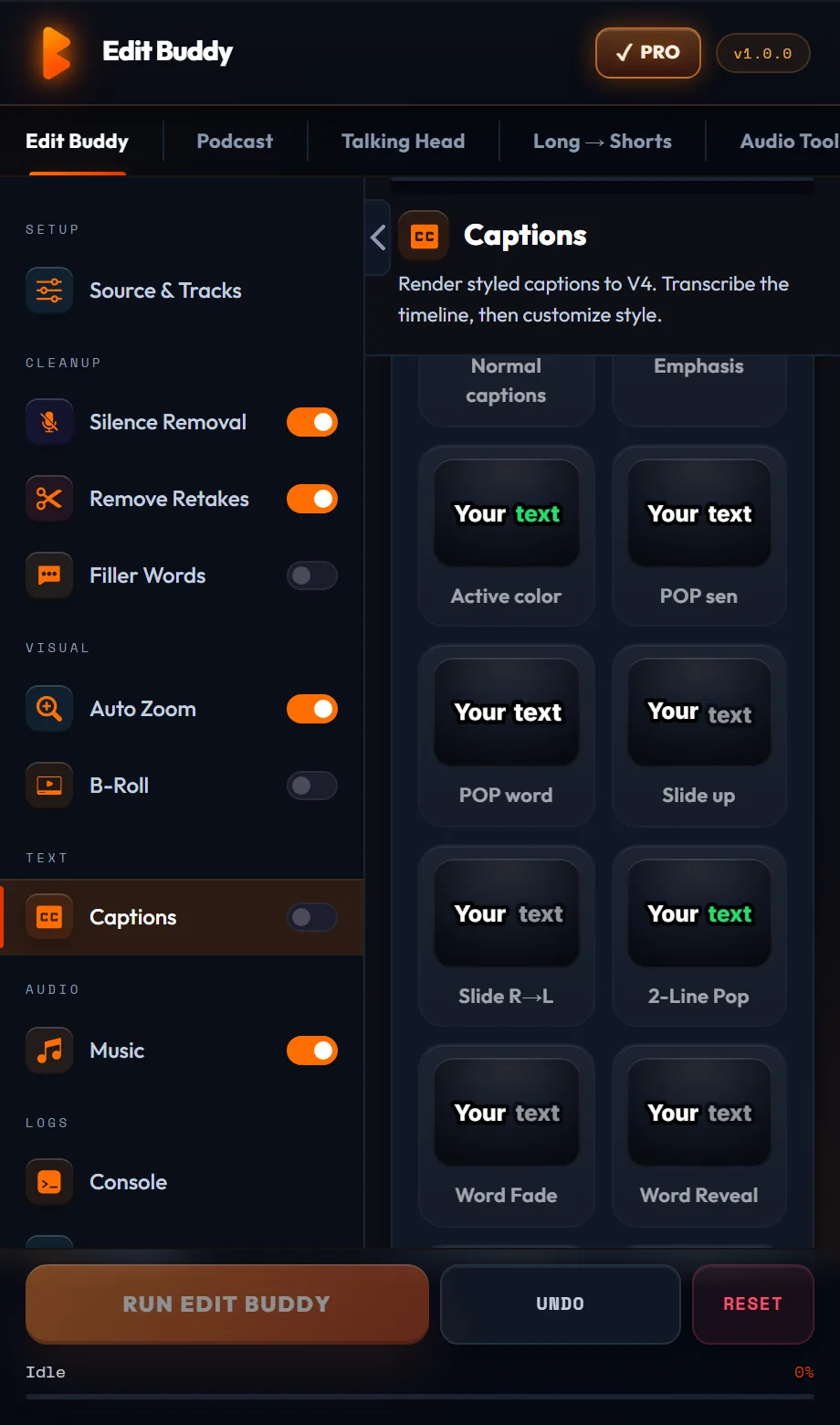
Key features of EditBuddy's automatic captions for Premiere Pro
Premiere Pro's built-in captions tool generates captions on raw footage — and then you have to re-sync them every time you remove silence or cut a retake. EditBuddy generates captions on your edited timeline, after all cleanup is done, with no re-sync step ever.
High-accuracy local transcription
EditBuddy runs a high-accuracy local speech recognition engine on your machine — no upload, no usage cap, no per-minute billing. The optimised inference engine provides word-level timestamps accurate to ±20 ms, which means caption blocks start and end exactly where the words do.
Synced to the edited timeline, not raw footage
EditBuddy stores a time-remap table throughout the silence removal and retake detection pipeline. When captions are generated, every word timestamp is mapped through this table to the correct frame on your trimmed sequence. No manual re-sync — ever.
MOGRT-based styled caption placement
Captions land on V4 as MOGRT (Motion Graphics Template) clips — the same format Premiere Pro uses natively. Fully editable in the Essential Graphics panel after generation: change font, colour, size, position, or timing without re-running the pipeline.
Multiple style presets
Built-in presets cover the most common caption styles: YouTube standard (white text, black stroke, lower third), TikTok bold (large centred, two-tone highlight), and podcast subtitle (clean, minimal, accessibility-compliant). Customise any preset and save it as your default.
Burn-in captions and SRT export
Generate burned-in captions for social video or export a properly timed SRT file for YouTube closed captions, TikTok accessibility, or subtitle compliance. Both output options are available in the same session — you are not forced to choose one at the start.
Natural caption grouping
EditBuddy groups words into natural reading blocks — typically 5–8 words per block — respecting sentence boundaries, pause locations, and breath points from the Whisper transcript. Blocks never split mid-phrase, so viewers can read at a comfortable pace.
Large-v3 model for difficult audio
For accented speakers, technical jargon, or noisy recording environments, EditBuddy supports the Whisper enhanced accuracy mode model. Accuracy on these clips typically improves from 88% to 95%+ word accuracy. The model runs locally — no cloud transcription cost.
Part of the complete auto edit pipeline
Captions run as the polish step after silence removal and retake detection. You're always captioning a clean timeline. The pipeline re-maps timestamps automatically on re-run — no need to manually regenerate captions after a threshold adjustment.
How to add captions to Premiere Pro automatically
Four steps from raw footage to a fully captioned, export-ready Premiere Pro timeline. For a 15-minute video, the whole pipeline — silence, retakes, captions — typically takes under four minutes of wall-clock time.
Install EditBuddy and open your sequence
Install EditBuddy as a Premiere Pro CEP extension (Window → Extensions → EditBuddy). Activate your timeline. The panel reads the active sequence and linked audio track automatically — no file paths to configure manually.
Select your caption preset
Open the Captions tab in the EditBuddy panel. Choose a style preset or configure your own: font, size, colour, stroke, shadow, position, max words per block, minimum display duration. Settings are saved per project.
Run Auto Edit — captions generate after cleanup
Click Auto Edit. Silence removal and retake detection run first. Then Whisper transcribes your cleaned audio, caption blocks are generated using the time-remap table, and MOGRT clips are placed on V4. Live progress shows in the panel.
Review, correct, and export
Captions appear on your V4 track. Review timing in the Essential Graphics panel. Correct any transcript errors directly in Premiere. Then export your video or export the SRT file from the EditBuddy panel with one click.
Generate animated captions in Premiere Pro — free
EditBuddy generates word-by-word captions from your transcript in under 60 seconds. 26 animated MOGRT styles included. Free trial includes 100 AI minutes — no credit card.
View Plans & Start Free →Who uses EditBuddy's automatic captions in Premiere Pro?
Anyone who needs captions faster than manual typing and more accurately synced than Premiere Pro's built-in Speech to Text — which re-generates on raw footage instead of the edited timeline.
YouTube and social video creators
85% of social video is watched without sound. Captions are a retention and ranking factor, not a nice-to-have. EditBuddy gets styled, properly timed captions on your video in the time it used to take to manually adjust the first three caption blocks in Premiere's native tool.
Podcast video editors
Long-form interview podcasts need accurate captions for accessibility compliance and for the SEO value of searchable transcripts. EditBuddy's Whisper-based captions handle long-form audio without the per-minute billing of cloud transcription services like Rev or Otter.
Corporate and educational video producers
Training videos, webinar recordings, and corporate communications increasingly require ADA and WCAG caption compliance. EditBuddy generates SRT files that meet caption accuracy standards and exports them in the format YouTube, Vimeo, and LMS platforms expect.
Why EditBuddy vs. Premiere Pro's built-in automatic captions
Premiere Pro 2024 added Speech to Text, but its workflow has a fundamental problem for editors who clean their footage before captioning.
Premiere Pro Speech to Text
Generates captions based on the raw source media timeline. After silence removal or retake cuts, caption timing is out of sync and must be manually adjusted or regenerated from scratch. Requires a Creative Cloud connection. Style options are limited to the Captions panel defaults.
For editors who clean footage before captioning, Premiere's tool adds a mandatory re-sync step that costs as much time as the automation saved.
EditBuddy Auto Captions
Generates captions on the edited timeline using the time-remap table. Whisper runs locally — no Creative Cloud dependency, no per-minute charge. Full style control. Burns in as MOGRT or exports SRT. Handles long-form audio without rate limits or session timeouts.
Because EditBuddy runs silence and retake removal first, captions are generated on a clean, tight timeline that is already ready for export — no re-sync step, ever.
Add captions to Premiere Pro in one click
EditBuddy's Whisper-powered captions sync to your edited timeline — not raw footage. Burn-in or SRT. No Creative Cloud dependency. Start free — no credit card required.
Start Free Trial — No Credit CardFrequently asked questions about auto captions in Premiere Pro
How does EditBuddy add captions to Premiere Pro automatically?
EditBuddy uses a high-accuracy local speech recognition engine running locally on your machine to transcribe the audio on your edited Premiere Pro sequence. It generates word-level timestamps, maps them through the time-remap table from upstream pipeline steps, groups words into caption blocks, and places each block as a MOGRT clip on V4 of your sequence — all within the Auto Edit pipeline, with no manual steps required.
Are captions synced to the edited timeline or the original raw footage?
Captions are always synced to your edited timeline — the version after silence removal and retake cuts. EditBuddy maintains a time-remap table throughout the pipeline so every caption block corresponds to the correct frame position in the trimmed sequence. This is the key advantage over Premiere Pro's built-in Speech to Text, which generates captions on the raw source and requires manual re-sync after any edit.
Can I customise the caption style — font, colour, size, position?
Yes. EditBuddy provides style presets (YouTube standard, TikTok bold, podcast subtitle) and full customisation of font family, font size, colour, stroke, shadow, background box, opacity, and vertical/horizontal position. All settings save as your project default. Caption clips are MOGRT format so they remain fully editable in Premiere's Essential Graphics panel after generation.
Does EditBuddy export SRT files for YouTube or TikTok?
Yes. EditBuddy exports properly timed SRT subtitle files directly from the panel. The SRT timestamps correspond to your edited timeline — not source media timecodes — so they upload correctly to YouTube, TikTok, Instagram, Vimeo, and most LMS platforms without any offset adjustment.
Does automatic captioning require an internet connection or API key?
No. A high-accuracy local speech recognition engine runs entirely locally on your machine. No audio is uploaded for transcription, no API key is required, and there is no per-minute billing. An internet connection is only needed for the initial EditBuddy account authentication and for downstream AI features like retake detection and B-roll prompts, which are separate opt-in steps.
Need captions added without Premiere Pro?
EditBuddy's editing service adds animated captions to every order — Shorts, podcasts, and bulk clips. Captions included at no extra charge from $15.
Get Captions Added For You →Keep going — the full EditBuddy pipeline
Auto captions are the polish step. Build the complete pipeline — silence removal, retakes, captions, B-roll, zoom — all from one Premiere Pro panel.